Mic Monitoring Test: Hear Yourself Live
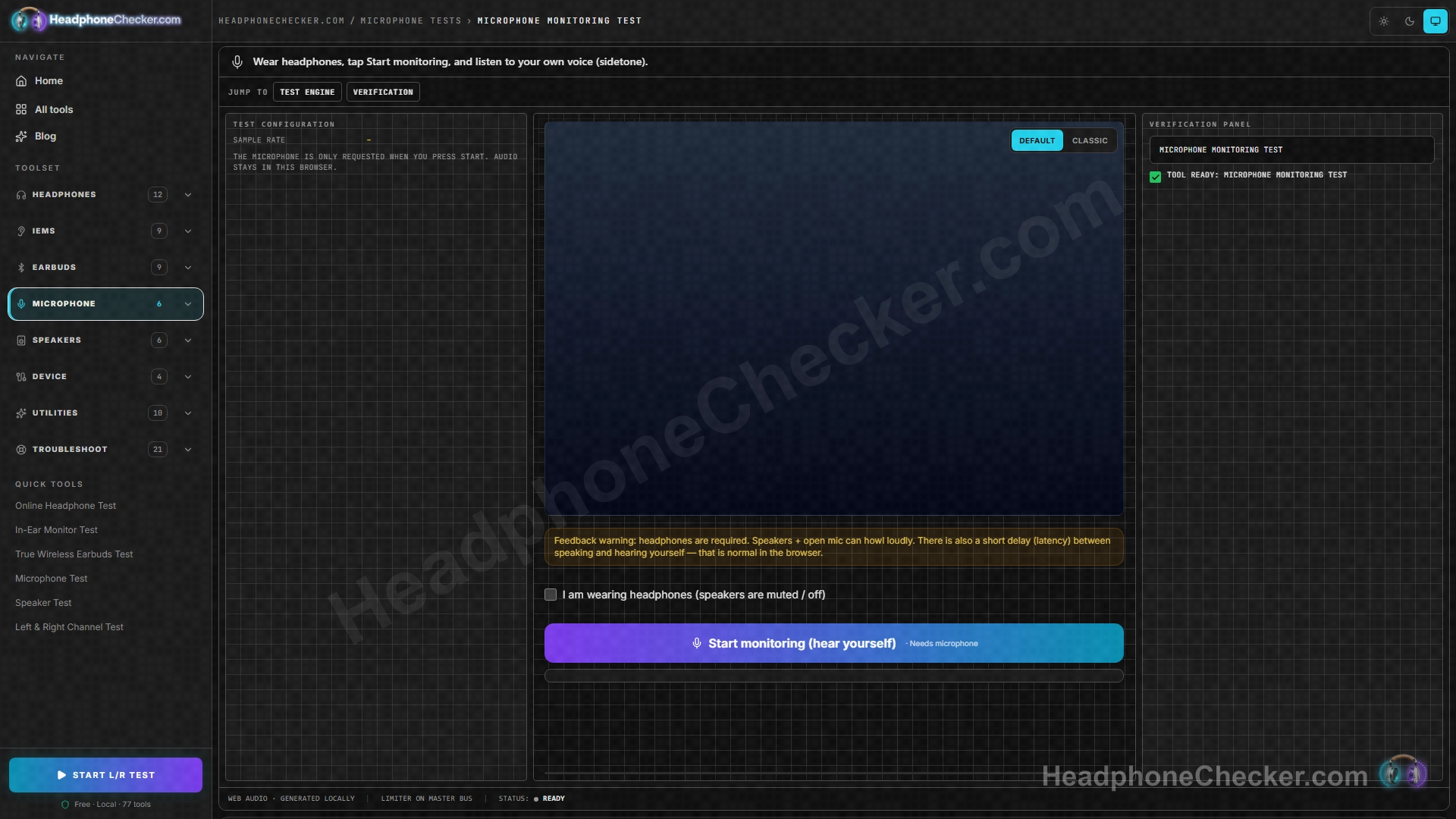
Wear headphones, tap Start monitoring, and listen to your own voice (sidetone).
Feedback warning: headphones are required. Speakers + open mic can howl loudly. There is also a short delay (latency) between speaking and hearing yourself — that is normal in the browser.
“Hear my mic live in headphones”
Mic monitoring test: hear your own microphone live in your headphones (sidetone) to check voice quality, noise and level. Wear headphones to avoid feedback.
- Real-time microphone monitoring (hear yourself)
- Headphones-required confirmation
- Feedback and latency warnings
- Runs locally in the browser, no install or upload
- Start quiet; protect your hearing
A browser check for finding faults, not a calibrated lab measurement. How our tests work
How to hear yourself through the mic
This mic monitoring test lets you hear yourself on the mic live through your headphones. It works as a mic sidetone test to check voice quality, noise and level in real time.
- Put on headphones. Speakers and an open mic create a loud feedback squeal.
- Tick the box to confirm you are wearing headphones.
- Press start and allow the microphone. Speak and you will hear yourself with a short delay.
- Adjust the distance to the mic and listen for hiss, room echo or clipping, then press Stop.
Hear yourself: mic loopback
- Headphones are required. Speakers and an open mic create a feedback loop that can howl loudly.
- Latency is normal. The browser adds a short delay between speaking and hearing yourself, so it is not suitable for live music monitoring.
- For zero-delay monitoring, use a headset or audio interface with hardware (sidetone or direct) monitoring.
What to listen for
- Steady hiss under your voice: the input gain is high or the microphone is noisy. Measure it with the microphone noise check.
- Distortion on loud words: the level is too high and clipping. Lower the input gain and confirm with the audio clipping test.
- Hollow or echoey sound: the room is reflecting your voice. Move closer to the mic, or add soft furnishings near you.
- Muffled or very quiet: the wrong microphone may be selected (a laptop mic instead of the headset mic), or the mic is covered. See microphone too quiet.
- Your voice fades in and out, or background noise pumps: noise suppression or automatic gain is working hard. Compare them on and off in the microphone effects test.
What to check next
If this test passed
If something was wrong
How to solve common issues
Delay is distracting
Use hardware sidetone or direct monitoring instead.
Voice too quiet
Set the input level into the target zone.
Open related testHiss in the monitor
Measure the noise floor and lower the gain.
Open related test
FAQ
Why is there a delay when I hear myself?
What is mic monitoring used for?
How do I get zero-delay monitoring?
Privacy, safe volume and browser limits apply to every test: see how our tests work.
Continue diagnosing
All Microphone Tests →Microphone Tests
Headset Microphone Test
How do I sound on Discord / Zoom with my headset?
OpenMicrophone Tests
Microphone Volume Test
Is my mic too quiet or clipping?
OpenMicrophone Tests
Voice Recording Test
Record and hear myself
OpenMicrophone Tests
Microphone Noise Test
How noisy is my mic when idle?
Open