Headset Mic Test & Earcup Check
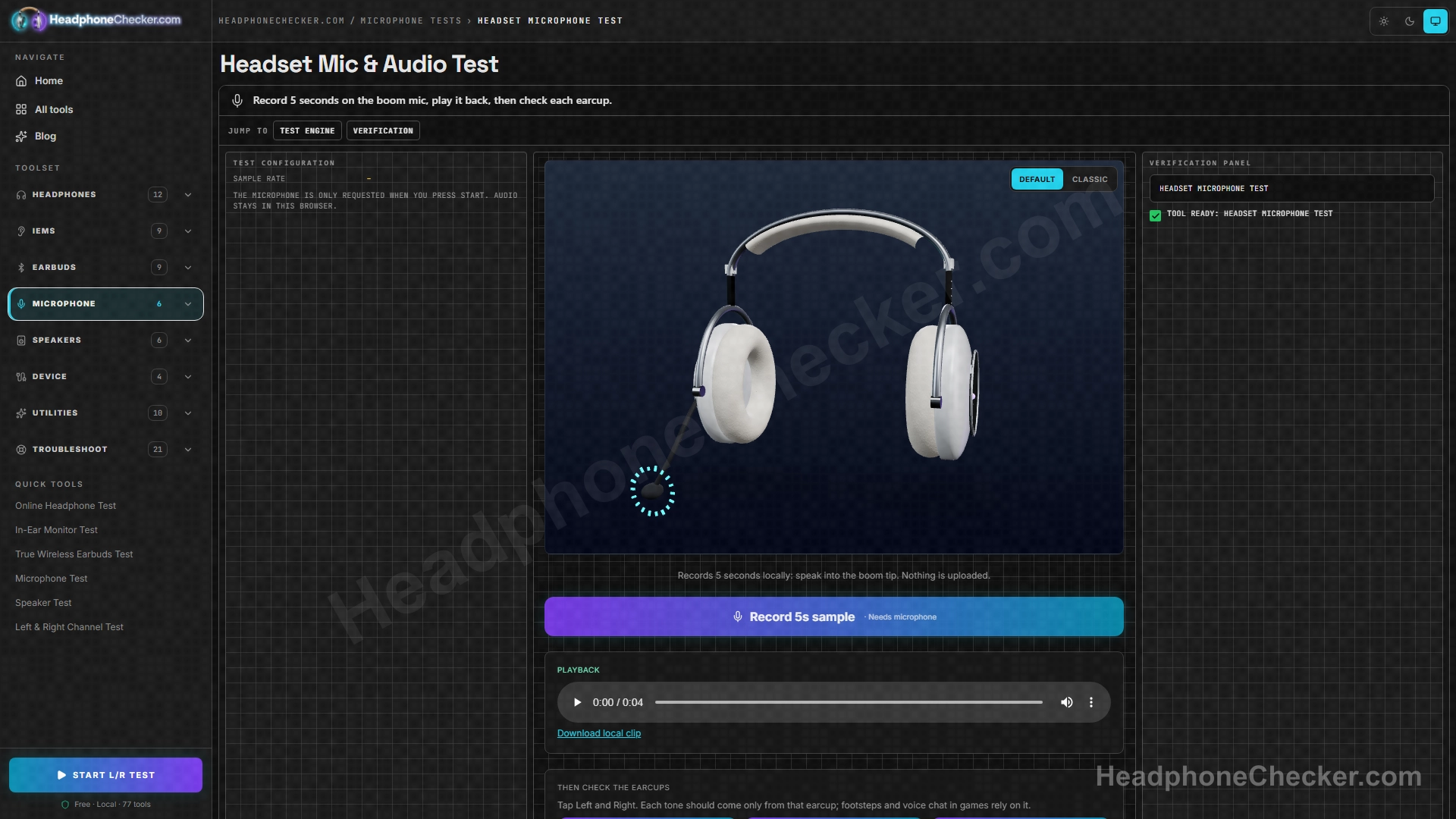
Record 5 seconds on the boom mic, play it back, then check each earcup.
Records 5 seconds locally: speak into the boom tip. Nothing is uploaded.
Then check the earcups
Tap Left and Right. Each tone should come only from that earcup; footsteps and voice chat in games rely on it.
“How do I sound on Discord / Zoom with my headset?”
Free headset mic test for gaming and office headsets: record a boom mic sample, play it back, then check the left and right earcups before a match or call.
- Record a 5-second headset mic clip locally
- Instant playback and local download
- Left / Right earcup check for gaming headsets
- Runs locally in the browser, no install or upload
- Start quiet; protect your hearing
A browser check for finding faults, not a calibrated lab measurement. How our tests work
How to test a gaming or office headset
This headset mic test records a short sample from your boom mic and plays it back, then checks each earcup. It is a gaming headset test and headset audio test in one, ideal before a match or a work call.
- Connect the headset (USB, 3.5 mm or wireless dongle) and select it as both the output and the input device.
- Put the boom mic two or three centimetres from the corner of your mouth, not straight in front of it.
- Press Record 5s sample, allow the microphone and say a sentence at your normal voice-chat volume.
- Play the clip back. Your voice should be clear, not muffled, clipped or buried under keyboard noise.
- Under Then check the earcups, tap Left and Right. Each tone must come only from that side, or footsteps and callouts in games will sound like they come from the wrong direction.
Select the headset as input and output
Windows
- Settings > System > Sound: choose the headset under Output and under Input.
- A Bluetooth headset may appear twice. The entry called Headset or Hands-Free is its low-quality call mode.
macOS
- System Settings > Sound: pick the headset on the Output tab and the Input tab.
Discord and games
- Set both Input and Output Device to the headset in Discord > Voice & Video, or in the game's audio settings, instead of Default.
One 3.5 mm plug or two?
A headset with one 4-pole plug carries the mic and the audio together. Laptops and phones with a single combo jack take it directly. A desktop PC with separate pink (mic) and green (headphone) jacks needs a headset splitter, otherwise only the audio is connected and the mic does nothing.
What to check next
How to solve common issues
Mic muted on the headset
Many headsets mute when the boom is raised or have a mute button with a red light. Lower the boom and unmute.
Single plug in a two-jack PC
A 4-pole plug in the green jack gives audio only. Use a headset splitter into the pink (mic) and green (audio) jacks.
Discord uses the wrong mic
Set the input device to the headset and work through the Discord-specific fixes.
Open related testLeft and right swapped
Turn off virtual surround in the headset software while you test, and check for a channel-swap option.
Open related test
FAQ
Why does my headset mic work here but not in a game?
Why does my wireless headset sound worse with the mic on?
How far should the boom mic be from my mouth?
Does this test virtual 7.1 surround?
Privacy, safe volume and browser limits apply to every test: see how our tests work.
Continue diagnosing
All Microphone Tests →Microphone Tests
Microphone Volume Test
Is my mic too quiet or clipping?
OpenMicrophone Tests
Voice Recording Test
Record and hear myself
OpenMicrophone Tests
Microphone Noise Test
How noisy is my mic when idle?
OpenMicrophone Tests
Microphone Effects Test: Noise Suppression, Echo & Gain
Hear what noise suppression, echo cancellation and auto gain do to my mic
Open