Mic Noise Test: Background Hiss Check
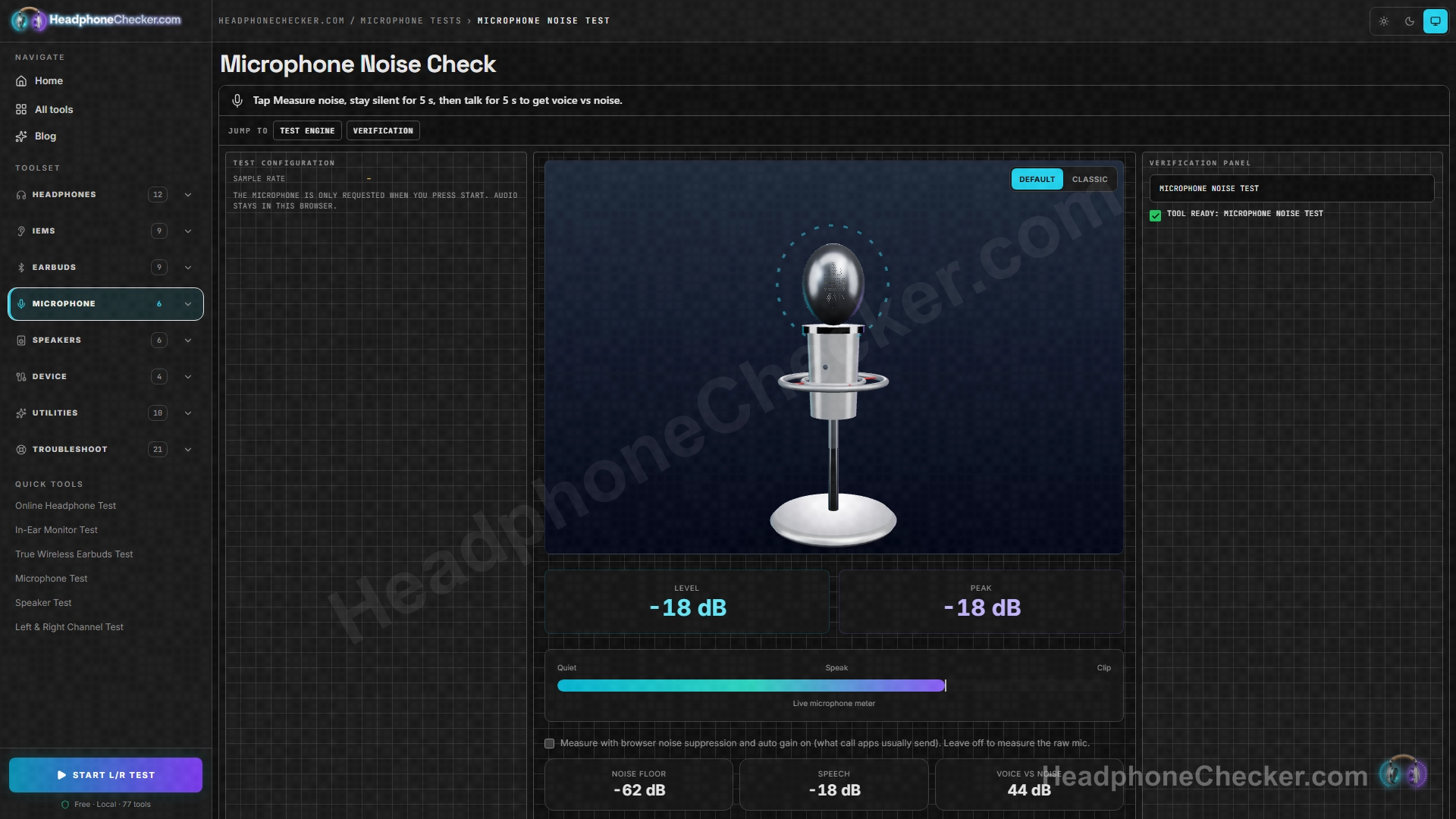
Tap Measure noise, stay silent for 5 s, then talk for 5 s to get voice vs noise.
Level
-60 dB
Peak
-60 dB
Idle: you will stay silent for 5 s, then speak for 5 s
“How noisy is my mic when idle?”
Free mic noise test: measure your microphone's background hiss against your speech level, spot fan and room noise, and see how noise suppression changes it.
- 5-second silent noise-floor measurement
- Speech level and voice-vs-noise (SNR) result
- Raw mic vs browser noise suppression comparison
- Runs locally in the browser, no install or upload
- Start quiet; protect your hearing
A browser check for finding faults, not a calibrated lab measurement. How our tests work
How to measure microphone noise
This mic noise test measures your microphone's background noise and mic hiss and compares them with your voice. A microphone noise test like this shows whether fan noise, room noise or high gain is the problem.
- Set the room up as usual: fans, air conditioning and computer running, mic in its normal place.
- Leave the noise suppression box unticked to measure the raw microphone.
- Press Measure noise and stay completely silent for 5 seconds. This measures the noise floor.
- When it says Now talk normally, speak for 5 seconds. This measures your speech level.
- Read Voice vs noise: your speech level minus the noise floor, in dB. Higher is better.
Reading the noise floor and voice vs noise
- Noise floor at −60 dB or lower: very quiet, no hiss you will notice.
- −60 to −50 dB: normal for desk and headset mics in a quiet room.
- −50 to −40 dB: listeners will hear hiss or room noise between your words.
- Above −40 dB: a fan, hum or very high gain is being picked up.
- Voice vs noise of 30 dB or more sounds clean, 20 to 30 dB is fine for calls, and below 20 dB the background competes with your voice.
Raw microphone vs noise suppression
Run the test twice: once raw and once with the box ticked. Browser noise suppression is the same kind of processing call apps use, and it usually lowers the floor a lot. If only the raw result is noisy, calls will sound fine but recordings made without suppression will hiss. If both are noisy, fix the source: move away from fans, lower the gain, or use a mic closer to your mouth.
What to check next
If this test passed
If something was wrong
How to solve common issues
Fan or computer noise
Point the mic away from the PC, move the computer further from the mic, or use a directional (cardioid) mic.
Hum from USB or cables
Try another USB port (rear ports on desktops), unplug the laptop charger briefly, or use a ground-loop isolator for analog mics.
Open related testHiss from too much gain
Lower the input volume and Microphone Boost, move closer to the mic and measure again.
Open related test
FAQ
What causes microphone hiss?
What is a good signal-to-noise ratio for a microphone?
Why does my microphone hum or buzz?
Are these real decibel measurements?
Privacy, safe volume and browser limits apply to every test: see how our tests work.
Continue diagnosing
All Microphone Tests →Microphone Tests
Headset Microphone Test
How do I sound on Discord / Zoom with my headset?
OpenMicrophone Tests
Microphone Volume Test
Is my mic too quiet or clipping?
OpenMicrophone Tests
Voice Recording Test
Record and hear myself
OpenMicrophone Tests
Microphone Effects Test: Noise Suppression, Echo & Gain
Hear what noise suppression, echo cancellation and auto gain do to my mic
Open