Mic Test: Check Your Microphone Online
Tap Start mic test, allow the mic and speak until it says signal detected.
Level
-60 dB
Peak
-60 dB
Idle: start to open the microphone
“Is my microphone working?”
Free online mic test: allow microphone access, watch your live level and waveform, and confirm your mic works for Zoom, Discord or Teams. Audio stays private.
- Live microphone level meter
- Signal-detected check with the name of the input in use
- Peak hold with clipping warning
- Runs locally in the browser, no install or upload
- Start quiet; protect your hearing
A browser check for finding faults, not a calibrated lab measurement. How our tests work
How to test your microphone in 4 steps
This mic test is a quick microphone check: allow access, speak and watch the live level. Use this microphone test online before Zoom, Discord, Teams or a recording; like every mic test online here, your audio stays in the browser.
- Plug in or connect the microphone first, then reload this page so the browser can see it.
- Press Start mic test and choose Allow in the browser prompt. The same prompt (or the mic icon in the address bar) lets you switch to another microphone.
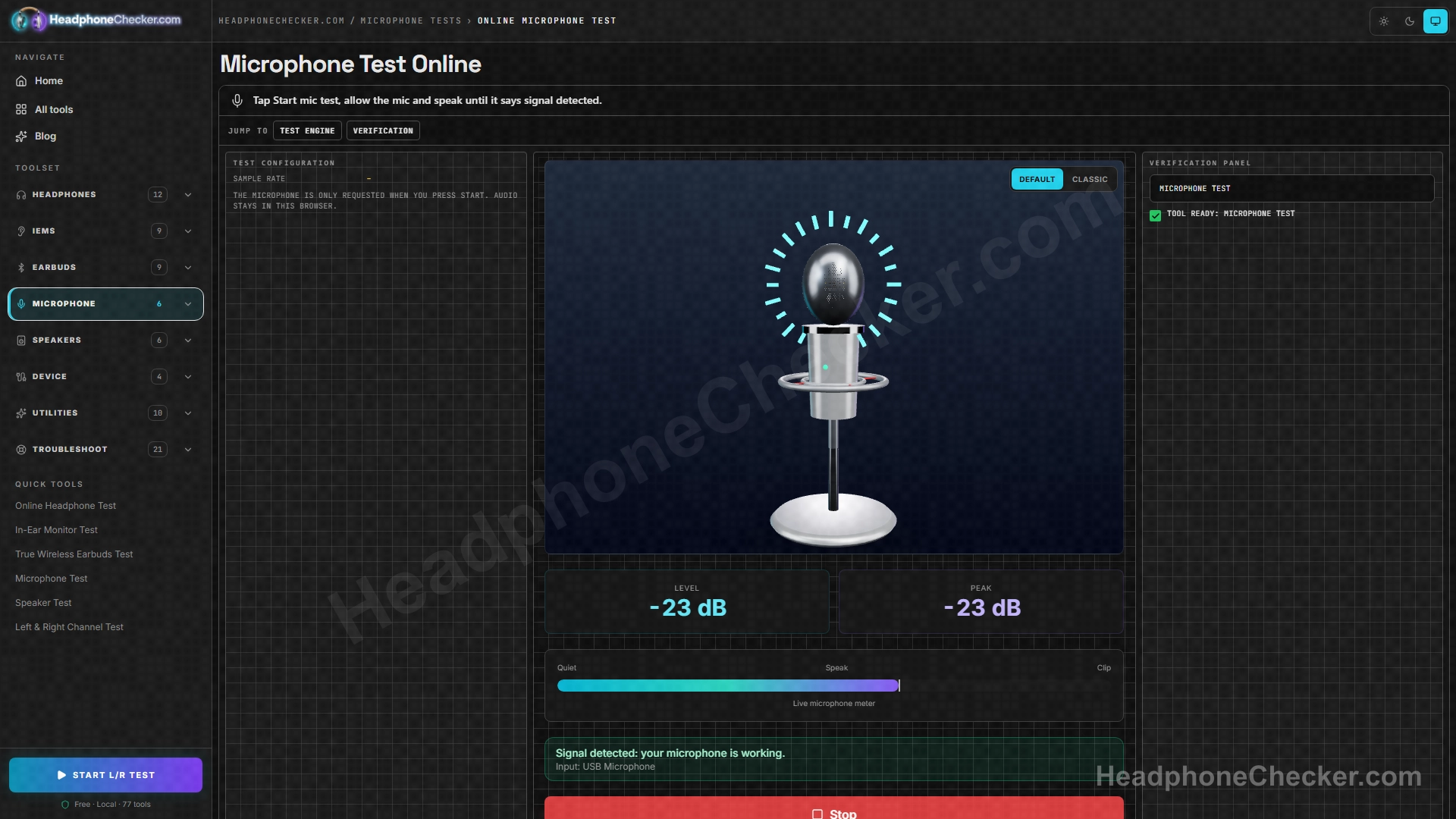
- Say a few words at your normal distance. The status changes to Signal detected once the browser has heard about half a second of sound.
- Check the Input name under the status. It is the microphone the browser actually opened, which is not always the one you expect.
What the readings mean
- Level is the live loudness in dBFS. 0 dB is the loudest a digital signal can be, so normal speech usually reads somewhere between −40 and −15 dB.
- Peak holds the loudest recent moment and turns red above −6 dB, which is close to clipping.
- A flat meter around −60 dB while you talk means the wrong device is open, the mic is muted, or permission is blocked.
- Signal detected but speech stays below about −35 dB: the mic works but its level is low. Set it with the microphone volume test.
Which microphone check to run next
Once you know the mic works, check the part that matters for you: its level, its background noise, or how a recording actually sounds.
What to check next
How to solve common issues
Permission was blocked
Click the lock or mic icon next to the address bar, set Microphone to Allow, reload the page and press Start mic test again.
System privacy switch is off
Windows: Settings > Privacy & security > Microphone must allow desktop apps. macOS: System Settings > Privacy & Security > Microphone must list your browser.
Another app holds the mic
Close call and recording apps. On Windows you can also untick “Allow applications to take exclusive control” in the mic's advanced properties.
Signal is there but very quiet
The mic works but its gain is low. Raise the input level until speech reaches the target zone.
Open related test
FAQ
Why does the browser ask for microphone permission?
The test works but Discord or Zoom cannot hear me. Why?
Which microphone does this test use?
Does the mic test work on phones?
How do I test my mic on Windows 11?
Privacy, safe volume and browser limits apply to every test: see how our tests work.
Continue diagnosing
All Microphone Tests →Microphone Tests
Headset Microphone Test
How do I sound on Discord / Zoom with my headset?
OpenMicrophone Tests
Microphone Volume Test
Is my mic too quiet or clipping?
OpenMicrophone Tests
Voice Recording Test
Record and hear myself
OpenMicrophone Tests
Microphone Noise Test
How noisy is my mic when idle?
Open