Headphone Troubleshooter: Step-by-Step Fixes
Pick your device and problems, then work through each fix until one solves it.
Step 1 · Device
Step 2 · Problems (pick one or more)
Pick the problems you have. The fixes appear here, one step at a time.
“Something is wrong — tell me what to test next”
Free headphone troubleshooter: pick your device and problems, then follow step-by-step fixes with live left/right and mic checks and a report for support.
- 21 problems across headphones, earbuds, speakers and mics
- Step-by-step fixes for Windows, macOS, Android and iPhone, picked automatically
- Fixed it / still broken tracking with a hardware verdict
- Live left/right and mic checks inside the steps
- Start quiet; protect your hearing
A browser check for finding faults, not a calibrated lab measurement. How our tests work
How to use the troubleshooter
This headphone troubleshooter fixes no sound from headphones and other audio problems step by step. Pick your device and the problems you notice; it is headphone troubleshooting with live checks, for anything from headphones no sound to crackling and low volume.
- Choose the device that has the problem: headphones, earbuds or IEMs, speakers or a microphone.
- Tick every problem you notice. Each one opens its own fix card with the most likely causes.
- Check that Steps for shows your system. It is detected automatically, but you can switch it.
- Do the first step, then press Fixed it or Still broken: next step. Some steps include a live left/right or microphone check.
- If every step fails, the card tells you it is likely hardware and what to do next. Press Copy report for support to keep a record of what you tried.
Check your sound settings
Many "broken headphone" reports turn out to be settings. Check these four things before blaming the hardware: the default output device, mono audio, audio enhancements and the sample rate.
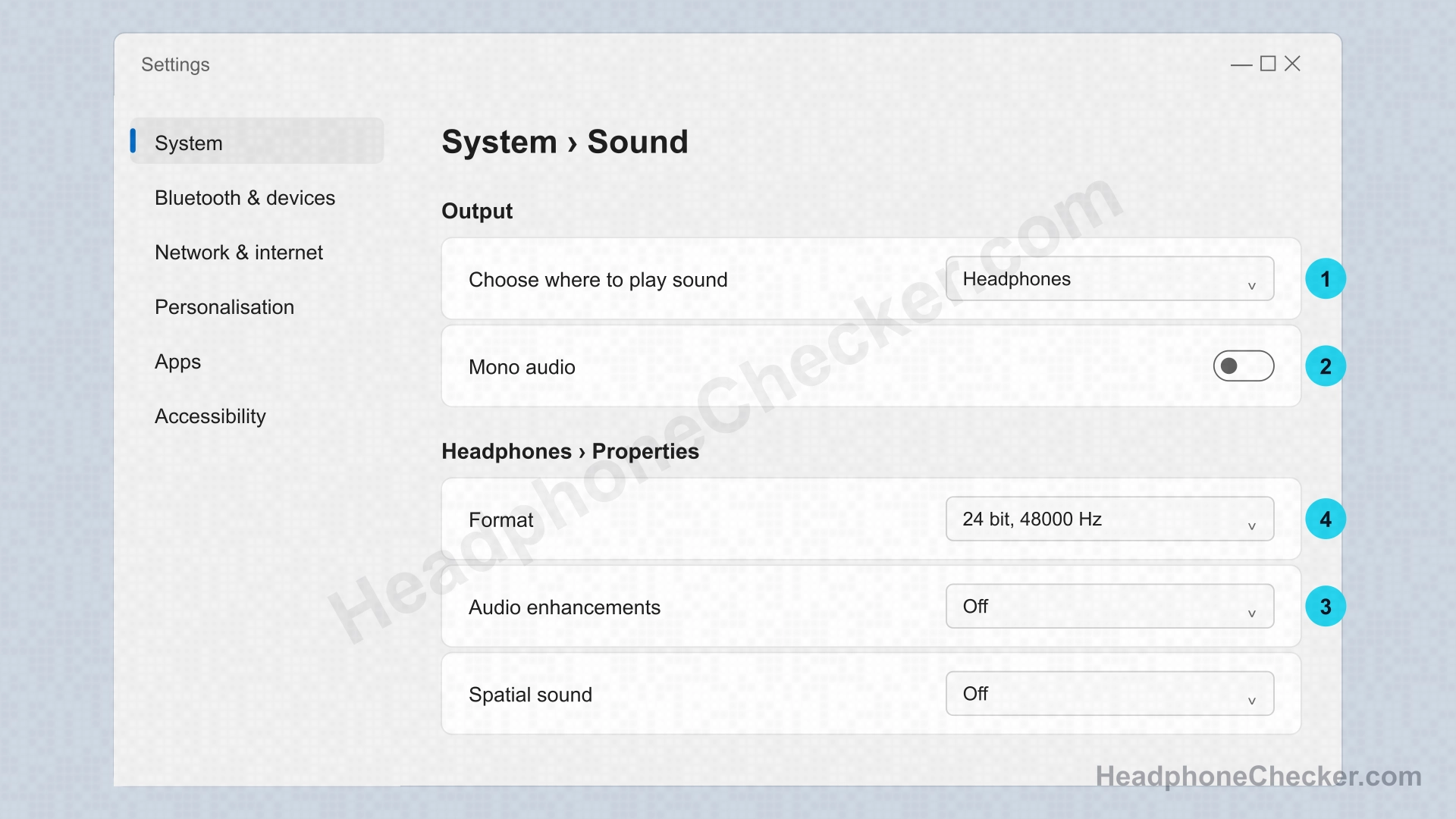
Windows 11
- Default device: Settings > System > Sound > "Choose where to play sound", or the arrow next to the volume slider in Quick Settings.
- Mono audio: Settings > Accessibility > Audio > Mono audio should be Off for stereo tests.
- Enhancements: Settings > System > Sound > your device > Audio enhancements = Off, and Spatial sound = Off while testing.
- Sample rate: the same device page > Format. 24-bit, 48000 Hz is a safe default.
Windows 10
- Default device: Settings > System > Sound > Choose your output device.
- Mono audio: Settings > Ease of Access > Audio > Turn on mono audio = Off.
- Enhancements and sample rate: Control Panel > Sound > Playback > Properties > Enhancements (Disable all) and Advanced > Default Format.
macOS
- Default device: System Settings > Sound > Output, or Control Center > Sound.
- Mono audio: System Settings > Accessibility > Audio > "Play stereo audio as mono" = Off.
- Sample rate: open Audio MIDI Setup, select the device and check Format (44.1 or 48 kHz).
macOS 12 and older: open System Preferences instead of System Settings.
Android
- Output: swipe down, open the media output switcher (or volume panel) and pick your headphones.
- Mono audio: Settings > Accessibility > Audio (Samsung: Hearing enhancements) > Mono audio = Off.
- Turn off Dolby Atmos / sound effects or equalizer apps while testing.
iPhone / iPad
- Output: Control Center > tap the AirPlay icon on the music card and pick your headphones.
- Mono audio: Settings > Accessibility > Audio & Visual > Mono Audio = Off.
- Spatial Audio and Headphone Accommodations (same menu) change the sound; turn them off for a clean test.
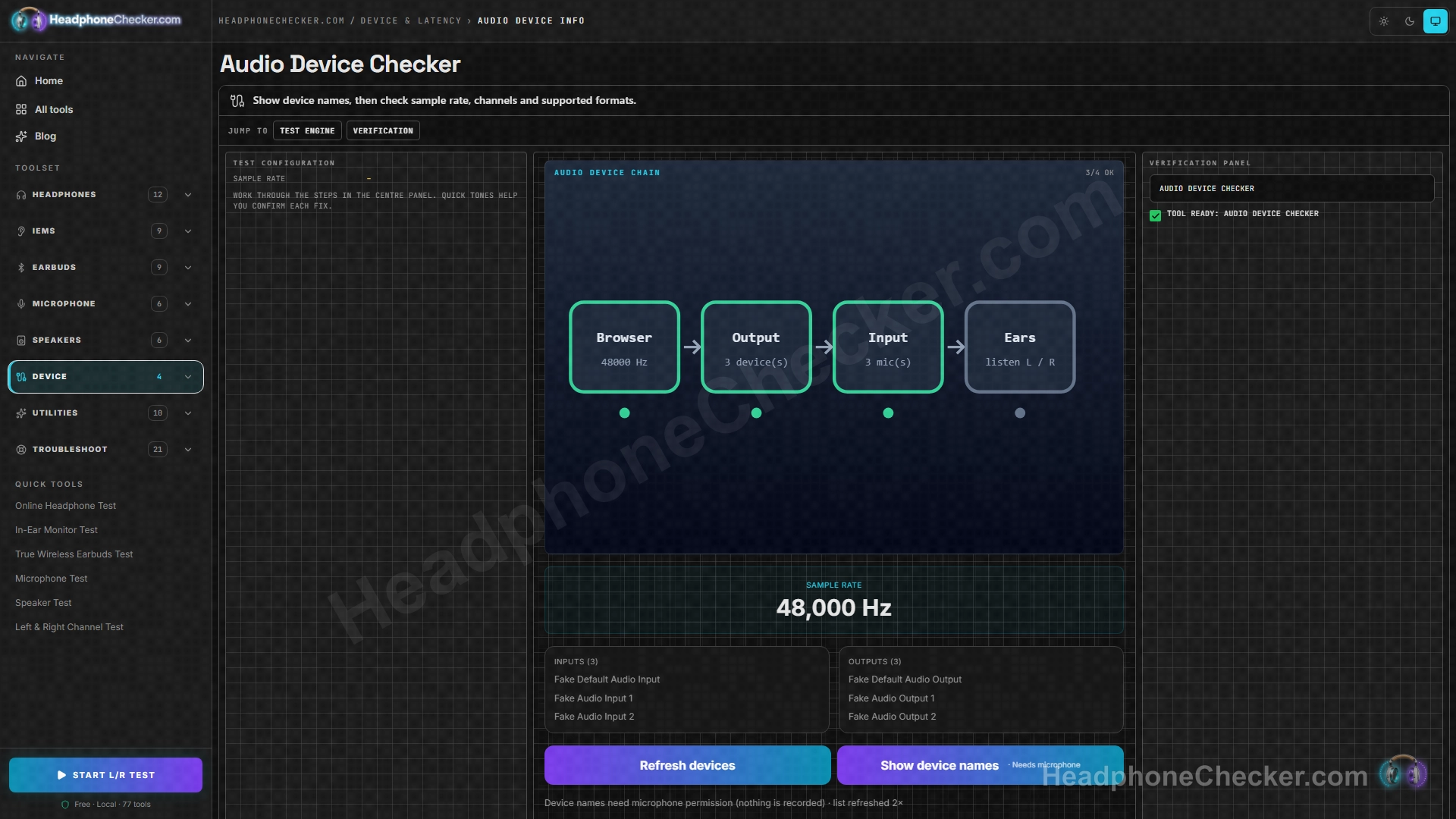
What to check next
How to solve common issues
Fixed, then it came back
Settings like the output device and Bluetooth profile can reset after updates or when another device connects. Run the step that fixed it again.
Only fails in one app
That app has its own audio device or mic setting. Pick the same device inside the app as in your system settings.
Open related testSeveral problems at once
Tick them all. Shared causes such as the wrong output device or Mono audio usually fix more than one.
FAQ
Why does sound play from my speakers instead of my headphones?
What does mono audio do to a headphone test?
Can audio enhancements cause problems?
What should I send to support or the seller?
Why do my headphones crackle?
When should I replace headphones instead of fixing them?
Privacy, safe volume and browser limits apply to every test: see how our tests work.
Continue diagnosing
All Troubleshooting →Troubleshooting
Headphones or Earbuds Not Working on One Side
Fix a silent left or right ear cup or earbud
OpenTroubleshooting
Headphone Sound Problem Fixer: Static, Dropouts, Muffled
My headphones sound wrong — what is the cause and fix?
OpenTroubleshooting
Headphones Not Detected on Windows or Mac? Fixes
My computer does not see my headphones
OpenTroubleshooting
Headphone Jack Not Working? Causes & Fixes
No sound from the headphone jack
Open