Headphones Not Detected
Check the plug or Bluetooth link, then confirm the output in sound settings.
“My computer does not see my headphones”
Fix headphones not detected or missing in audio device manager on Windows 11 and Mac. Complete driver and connection troubleshooting steps.
Published · Updated
- Interactive fix checklist with progress
- Step-by-step fixes for Windows, macOS, Android and iPhone
- Links to the matching interactive tests
- Runs locally in the browser, no install or upload
- Start quiet; protect your hearing
A browser check for finding faults, not a calibrated lab measurement. How our tests work
Headphones not detected on Windows
If your headphones are not detected, with headphones not showing up in Windows 11, Mac headphones not detected or a USB headset missing, these fixes cover the computer, the phone and Bluetooth.
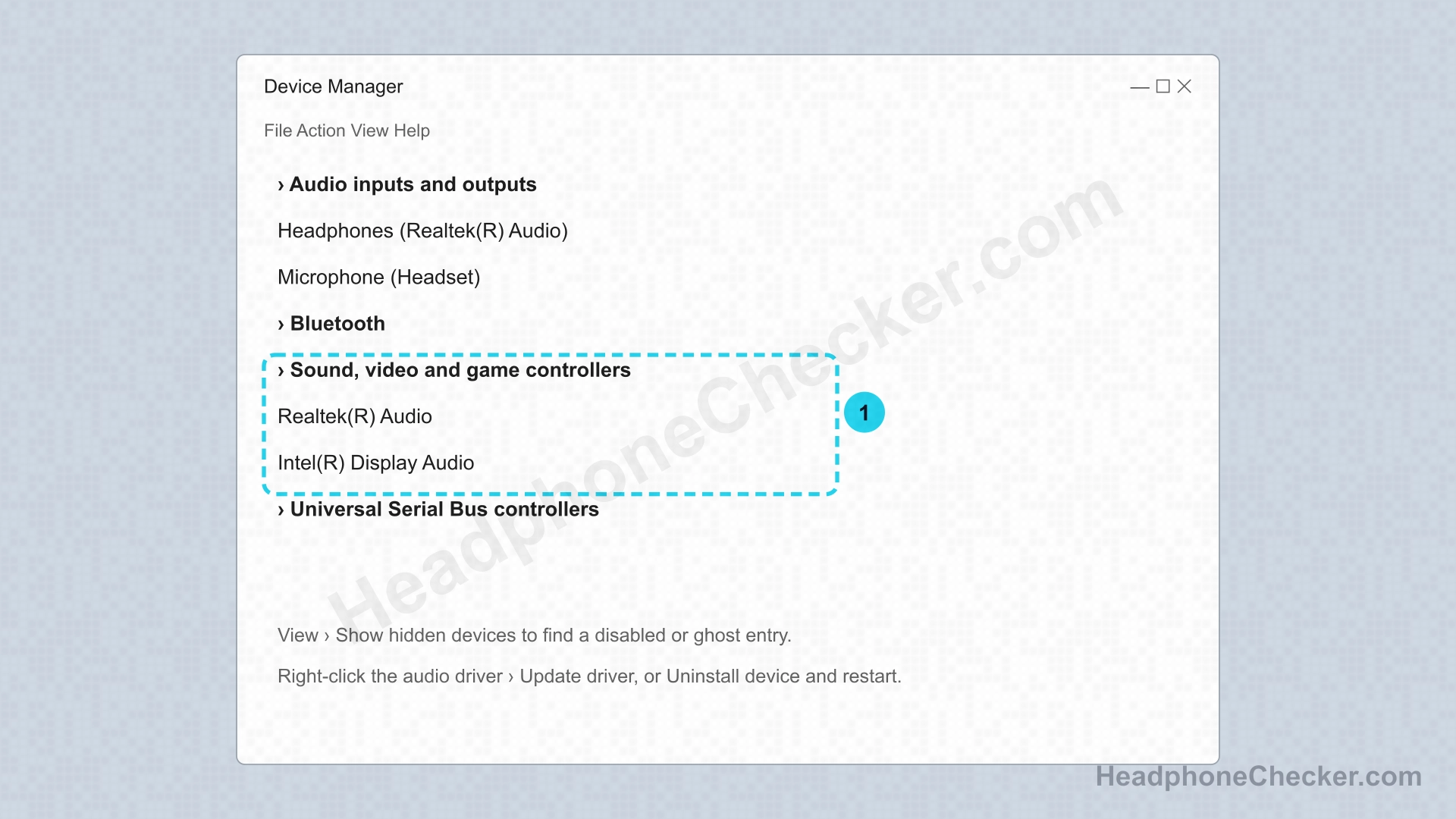
- Settings > System > Sound: check whether the headphones appear under Output. If listed, select them.
- More sound settings (Windows 10: Sound Control Panel) > Playback: right-click empty space and tick "Show disabled devices", then enable the headphones.
- Device Manager > Sound, video and game controllers: update the audio driver, or uninstall it and restart so Windows reinstalls it.
- Front-panel jacks on desktop PCs need the front audio cable connected inside the case. Try a rear jack.
- Some vendor audio apps have a jack detection or "split front/rear" setting that hides headphones.
Headphones not detected on Mac
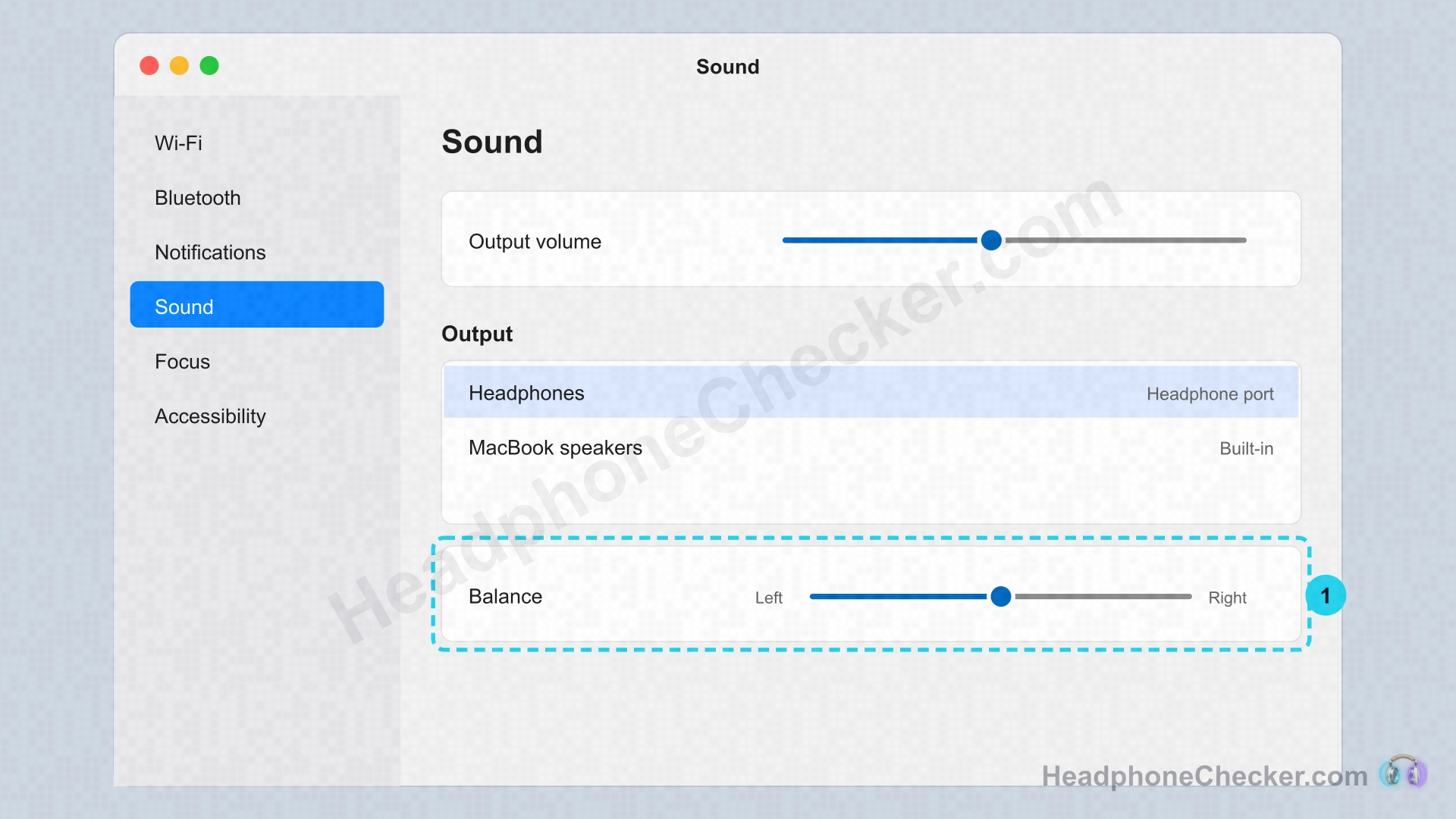
Narrow it down in two minutes
- Listed but no sound: the headphones are detected but not selected, or the volume is muted. Select them as the output and play the left and right test.
- Not listed at all, wired: plug them into a phone or another computer. If they work there, the problem is this computer's jack, driver or settings; see the headphone jack guide.
- Not detected anywhere: the cable or plug is likely faulty. The connection test helps find a broken wire.
- USB headset: try another USB port (not a hub) and check that it appears under audio devices. The audio device checker lists what your browser can see.
- Bluetooth: remove the headphones from the Bluetooth list and pair again.
What to check next
If this test passed
How to solve common issues
Jack not sensing the plug
Clean the jack and push the plug fully in.
Open related testDevice list empty
See which devices the browser and system detect.
Open related testBluetooth not connecting
Forget and re-pair the headphones.
Open related test
FAQ
Why do my headphones work on my phone but not on my PC?
Why does my laptop not switch to headphones automatically?
Why does Windows show my headphones as unplugged?
Why does my Mac not show my headphones?
Why are my USB headphones not detected?
Privacy, safe volume and browser limits apply to every test: see how our tests work.