Headphone Balance Test (Left vs Right Volume)
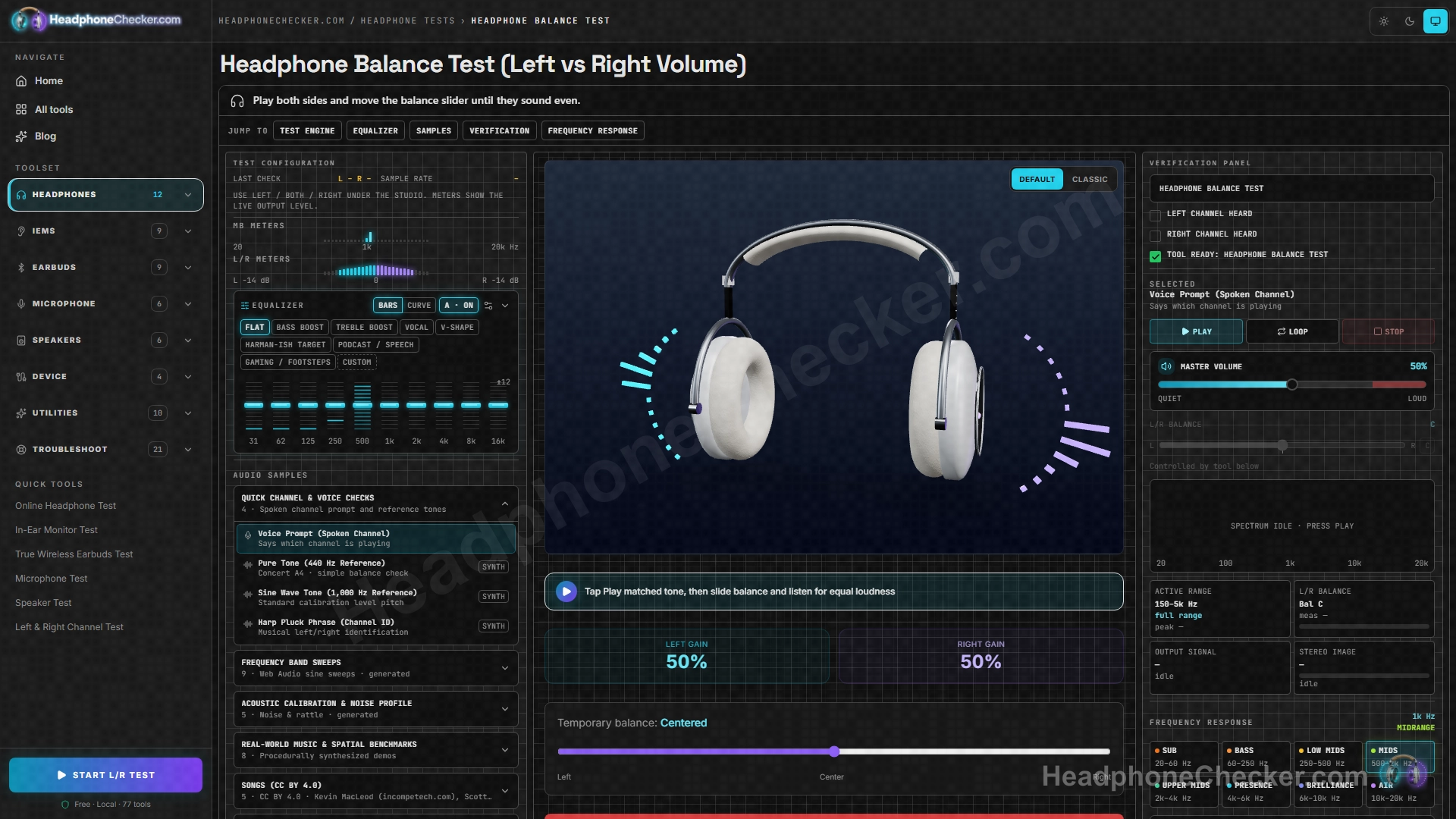
Play both sides and move the balance slider until they sound even.
Tap Play matched tone, then slide balance and listen for equal loudness
Left gain
50%
Right gain
50%
“Why does one ear sound louder than the other?”
Is one ear louder? Free headphone balance test: compare left and right volume at low, mid and high tones and fix unbalanced headphones or earbuds.
- Matched-tone balance comparison
- Fine L/R balance slider with measured offset
- Shared lab: master volume with limiter, L/R level meters and live output spectrum
- Runs locally in the browser, no install or upload
- Start quiet; protect your hearing
A browser check for finding faults, not a calibrated lab measurement. How our tests work
Save lab score
Optional — stores a summary via the existing Nest API (headphones).
How to run the balance test
Use this headphone balance test when one side of headphones is louder than the other (or one ear louder in general). It compares left and right at low, middle and high tones, so a small headphone volume imbalance shows up clearly and you can tell fit, wax and settings apart from a real fault.
- Centre any balance slider in your sound settings first.
- Press Play matched tone. The same tone plays in both ears.
- Move the Temporary balance slider until the tone sits exactly in the middle of your head.
- Read the left and right gain. Then press Sounds equal, Left louder or Right louder for advice.
How to adjust balance in Windows, macOS, Android, iPhone
If the test shows one side is louder, first rule out the simple causes: a blocked ear-tip, earwax on the nozzle mesh, or an uneven fit. If the difference is real, you can compensate with the system balance slider.
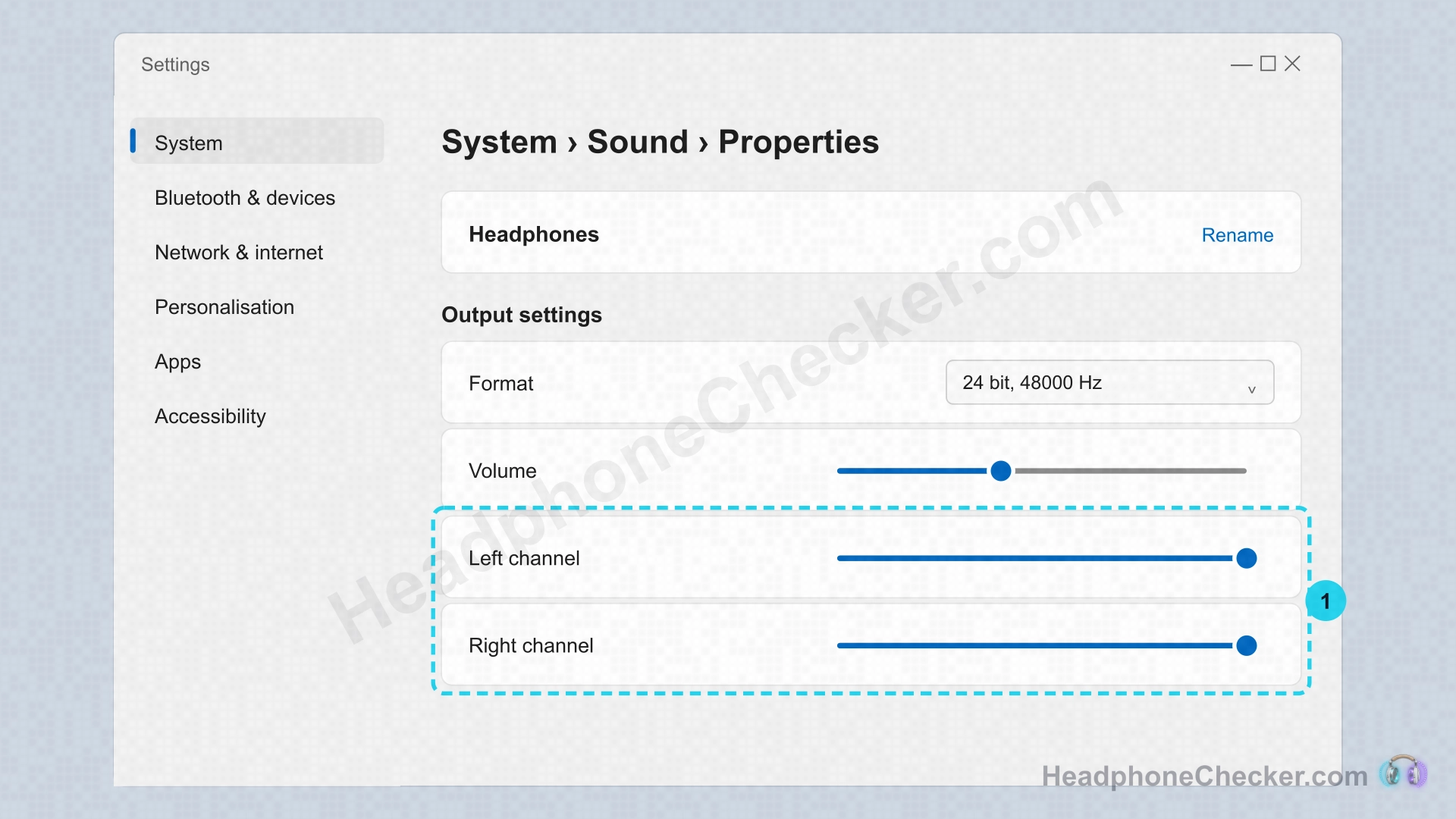
Windows 11
- Open Settings > System > Sound and click your headphones under Output.
- Under Output settings, move the Left channel and Right channel sliders until a centred tone sits in the middle.
- Windows 10: Control Panel > Sound > Playback > select the device > Properties > Levels > Balance.
macOS
- Open System Settings > Sound > Output and select your headphones.
- Drag the Balance slider. It is saved per output device.
macOS 12 and older: open System Preferences instead of System Settings.
Android
- Pixel and most phones: Settings > Accessibility > Audio (or Audio adjustment) > Audio balance.
- Samsung: Settings > Accessibility > Hearing enhancements > Left/right sound balance.
- Menu names vary by maker and Android version; search Settings for "balance".
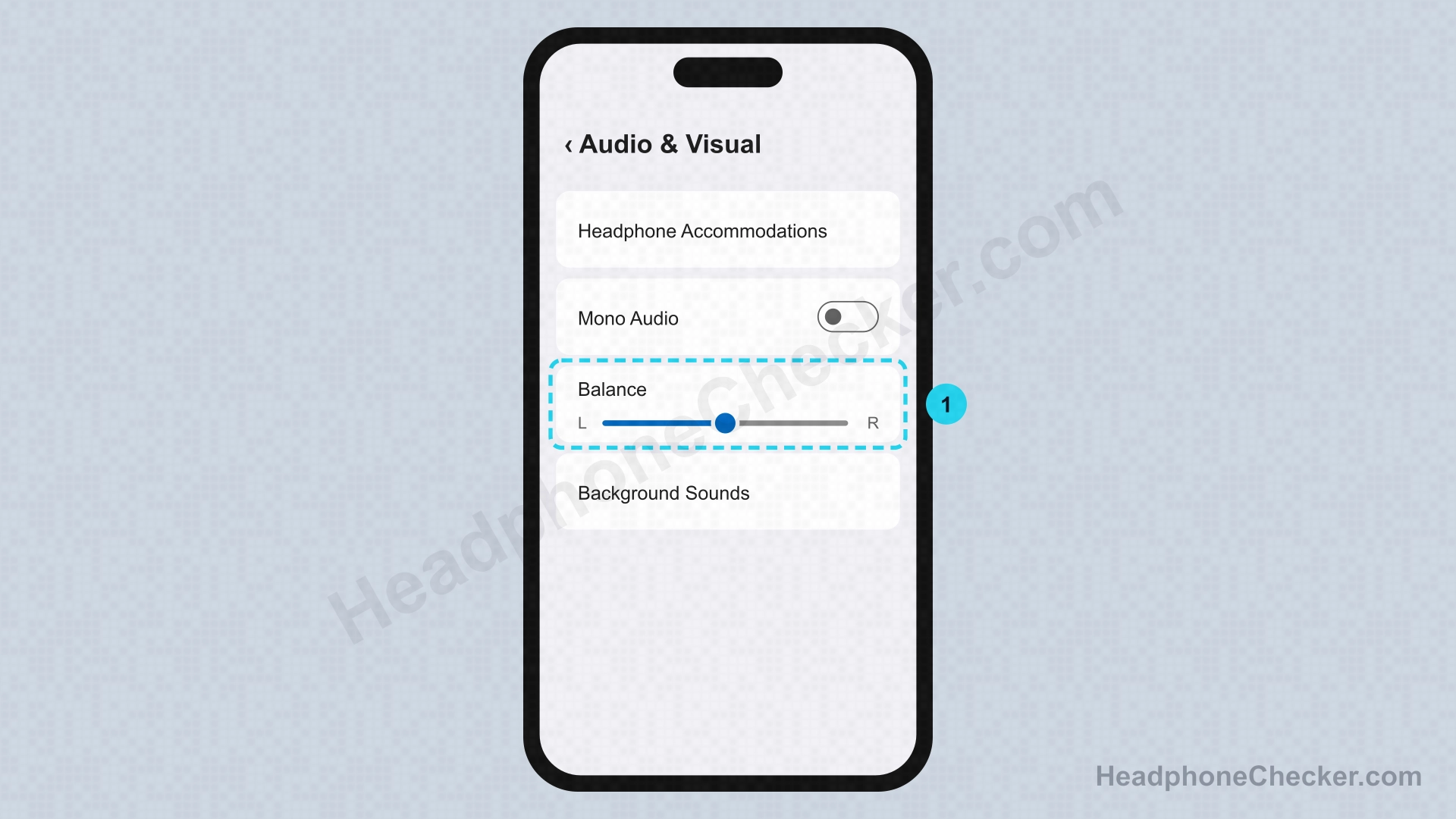
iPhone / iPad
- Open Settings > Accessibility > Audio & Visual.
- Move the Balance slider between L and R. Leave it centred unless one ear needs help.
Re-run the balance test after each change. A setting more than a few steps off centre usually points to a hardware problem, such as a weak driver or a damaged cable, rather than something to fix in settings. The left/right test helps confirm it.
What to check next
How to solve common issues
Balance slider off centre
Centre it in your system sound or accessibility settings.
Open related testOne side quieter
Clean the tips or pads and check the seal on that side.
Open related testIn-ear gear
Use the in-ear balance match, which finds the cause.
Open related test
FAQ
How do I know if my headphone balance is off?
Should I fix uneven headphones with the balance slider?
Why is the balance different on my phone and my computer?
Does this test change my system balance?
Privacy, safe volume and browser limits apply to every test: see how our tests work.
Continue diagnosing
All Headphone Tests →Headphone Tests
Left & Right Headphone Test
Is my left or right headphone working?
OpenHeadphone Tests
Stereo Headphone Test
Are my headphones producing proper stereo sound?
OpenHeadphone Tests
Headphone Frequency Test
Can my headphones reproduce different frequencies?
OpenHeadphone Tests
Headphone Bass Test
Can I hear bass properly, or are my headphones rattling?
Open