Headphone Distortion Test: Driver Rattle & Buzz
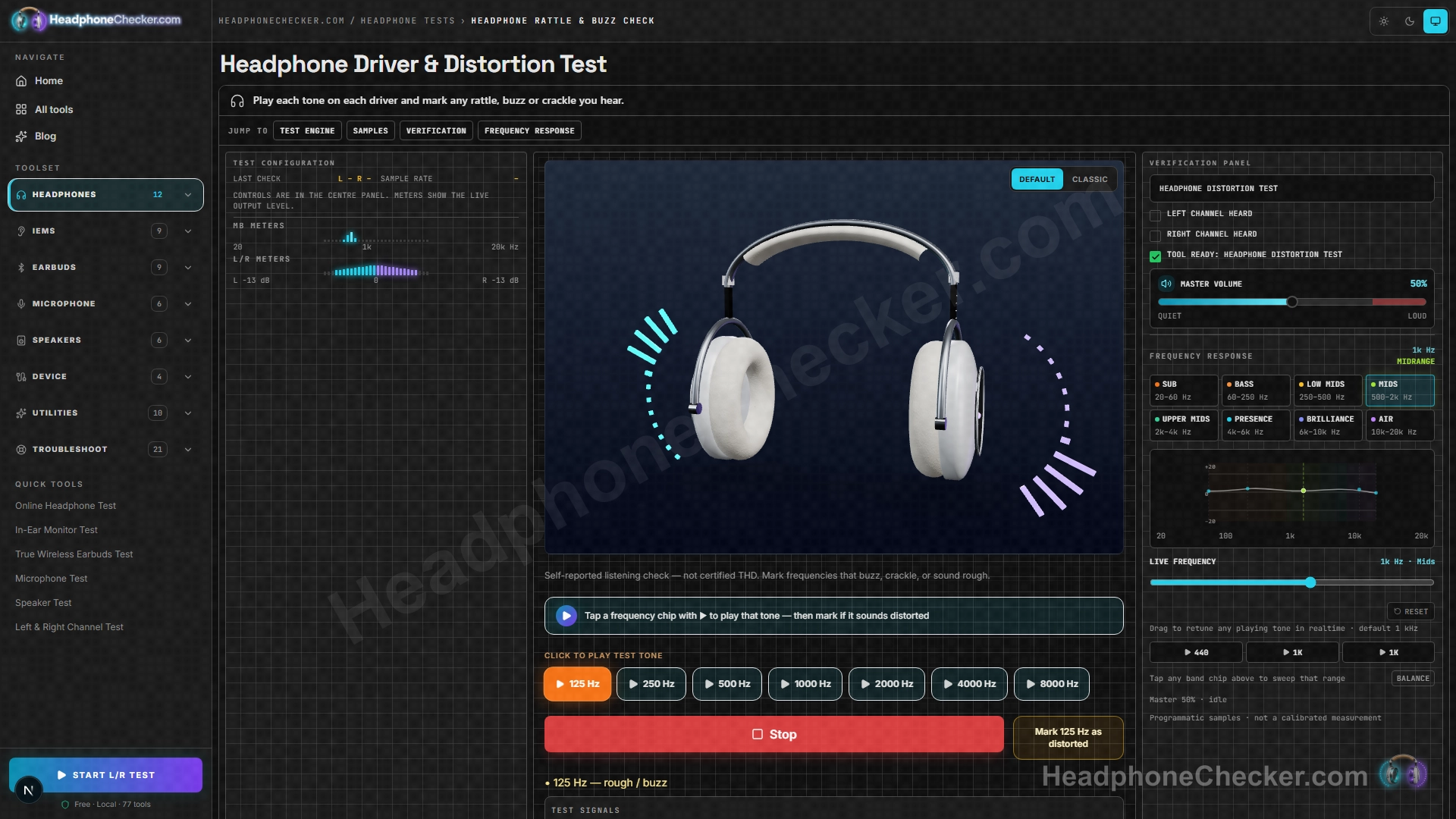
Play each tone on each driver and mark any rattle, buzz or crackle you hear.
Self-reported listening check — not certified THD. Mark frequencies that buzz, crackle, or sound rough.
Tap a frequency chip with ▶ to play that tone — then mark if it sounds distorted
Click to play test tone
Test signals
Generated live · tap to play, tap again to stop · Esc stops all audio
“Do I hear buzzing or crackling?”
Free headphone distortion test: mark tones that rattle, buzz or crackle, or run a slow 20 to 200 Hz rattle sweep to find the exact frequency. A listening check.
- Seven test tones from 125 Hz to 8 kHz with a volume cap
- Mark each tone that rattles or buzzes
- List of marked frequencies for a warranty claim
- Runs locally in the browser, no install or upload
- Start quiet; protect your hearing
Self-reported listening check only — not certified THD. How our tests work
Save lab score
Optional — stores a summary via the existing Nest API (headphones).
How to check each headphone driver for rattle or buzz
This headphone distortion test is a headphone driver test you can run by ear: play tones from bass to treble on each side and mark the ones that rattle, buzz or crackle. It doubles as a headphone buzzing test and headphone crackling test before you contact the seller, and its slow rattle test sweep (20 to 200 Hz) finds the exact frequency where the headphones buzz.
- Start with the volume slider low, then raise it to a normal listening level. Distortion that only appears at painful volume is not a fault.
- Tap a frequency chip (125 Hz to 8 kHz), then press Play.
- Listen for buzz, rattle, crackle or a fuzzy edge instead of a clean tone. Lift one ear cup at a time to compare the left and right drivers.
- If a tone sounds rough, press Mark … Hz as distorted. Your marks are listed under the buttons, which is handy for a warranty claim.
- Repeat for every tone. The bass tones (125 and 250 Hz) find loose parts and torn surrounds; 2 to 8 kHz finds harshness and crackle.
What your marks point to
- Rattle only at 125 to 250 Hz: something loose touching the diaphragm, debris on the mesh, or a torn surround. Pin down the exact frequency with the rattle sweep finder.
- Crackle on every tone in one ear: a failing driver or a bad connection. Flex the cable with the connection test.
- Rough on both sides only at high volume: the source is clipping (an EQ boost or app volume too high), not the drivers.
- Every tone clean: the drivers are healthy at this volume.
Driver, cable or source?
- Turn the headphones around so the left cup is on your right ear. If the fault moves to your other ear, it is in the headphones.
- Try another device and, if it is detachable, another cable. If the fault stays with the same ear cup, it is the driver.
- Turn off EQ and sound enhancements, keep the app volume below 100% and test again to rule out clipping at the source.
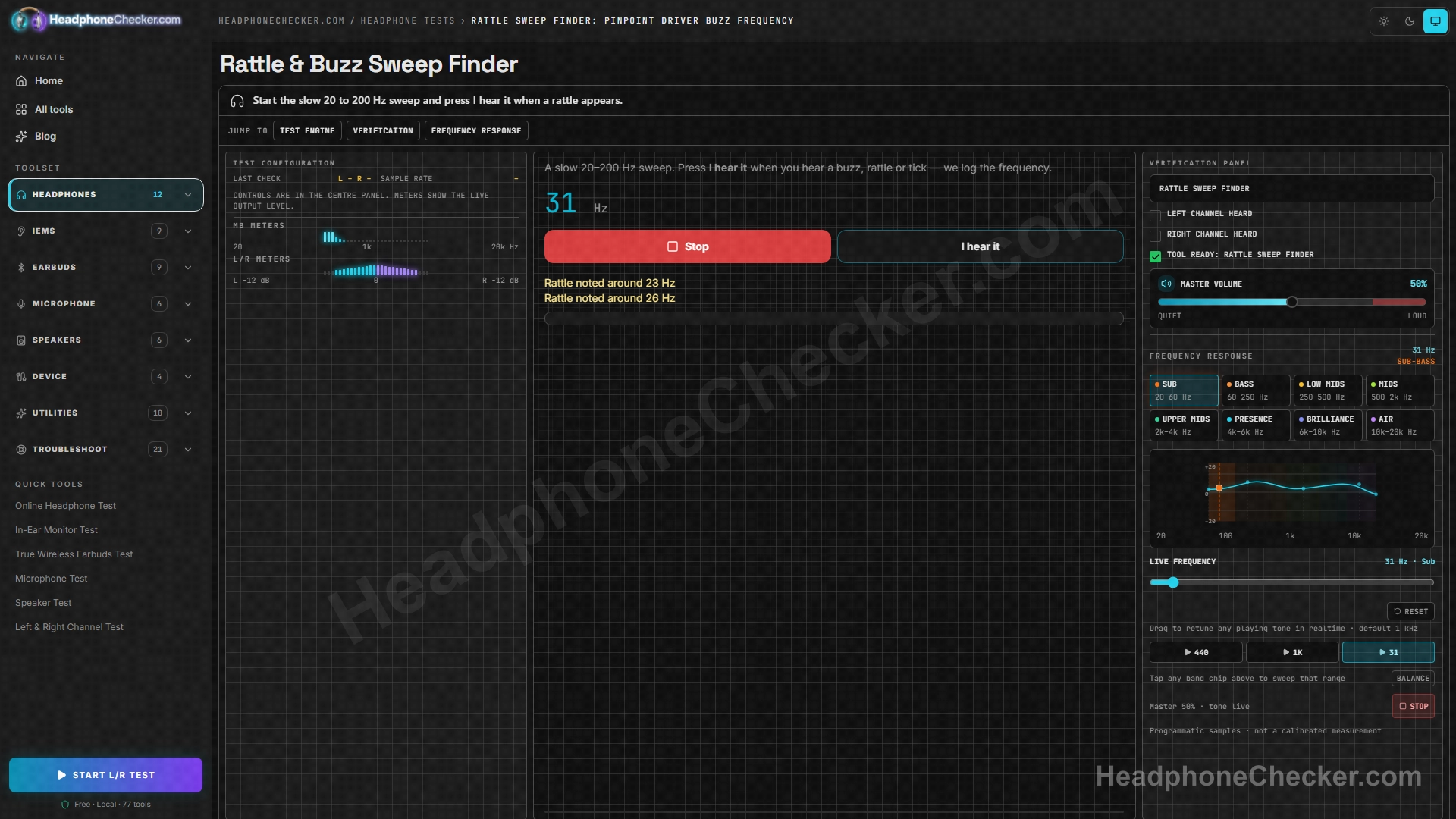
Rattle sweep: find the exact frequency that buzzes
- Set a moderate volume. Rattles appear at normal levels; very loud bass can damage drivers.
- Choose Rattle sweep above, start the slow sweep and listen to each ear cup closely.
- Press I hear it whenever a buzz, tick or rattle appears. The list shows the frequencies.
- Repeat with only one side on your head to tell which cup rattles.
A rattle at one frequency is often a loose part, cable or ear pad, not the driver itself. Check the bass test too, and the Tone check above for buzz higher up.
What the rattle frequency tells you
- The same frequency on both sides: usually the level, an equaliser bass boost or the source, not a fault. Lower the volume, switch off bass boost and sweep again.
- One side only, and it changes when you press the ear cup or move the pad: a loose ear pad, grille or cable touching the housing. Reseat the pad and check the cable routing.
- One side only, also at low volume: a damaged or rubbing driver. This rarely improves with use, so note the frequency and contact the seller.
- Only on very deep tones near the bottom of the sweep: many small drivers struggle there at higher volume. Turn down; if it stops, it is normal behaviour, not damage.
Logged frequencies are useful evidence: "rattle on the right cup at 60 to 70 Hz at moderate volume" is a clear, testable fault description.
What to check next
How to solve common issues
Buzz only on bass-heavy music
Reduce bass boost or EQ, then check the 125 and 250 Hz tones again.
Open related testCrackle when the cable moves
The fault is in the cable or plug, not the driver. Flex it slowly while a tone plays to find the spot.
Open related testDust or hair on the driver
Remove the ear pads and gently clear the mesh with a soft brush. Never push on the diaphragm.
FAQ
What does a blown headphone driver sound like?
Can a rattling headphone driver be fixed?
Is this a THD measurement?
Is a rattle at one frequency normal?
What causes a rattle in headphones?
Should I test at high volume?
Privacy, safe volume and browser limits apply to every test: see how our tests work.
Continue diagnosing
All Headphone Tests →Headphone Tests
Left & Right Headphone Test
Is my left or right headphone working?
OpenHeadphone Tests
Headphone Balance Test
Why does one ear sound louder than the other?
OpenHeadphone Tests
Stereo Headphone Test
Are my headphones producing proper stereo sound?
OpenHeadphone Tests
Headphone Frequency Test
Can my headphones reproduce different frequencies?
Open