Bluetooth Headphone Test: Earbuds & Headphones Dropouts
Follow the pairing checklist, or run the dropout test: a steady tone and an I heard a dropout button.
“Does my Bluetooth connection drop out, or will my earbuds not pair?”
Free Bluetooth headphone and earbuds test: log sound dropouts with a steady tone, then follow pairing and reconnect steps. AirPods and any headphones.
- Bluetooth pairing and output checklist
- Codec and profile guidance
- Runs locally in the browser, no install or upload
- Start quiet; protect your hearing
Browsers cannot control OS Bluetooth pairing or read the live A2DP codec. How our tests work
How to get Bluetooth headphones and earbuds working
This Bluetooth headphone test works for headphones and earbuds. The Bluetooth dropout test plays a steady tone and logs every cut-out, and the Bluetooth earbuds test checklist walks through earbuds pairing, choosing the right output and reconnecting when Bluetooth earbuds are not connecting.
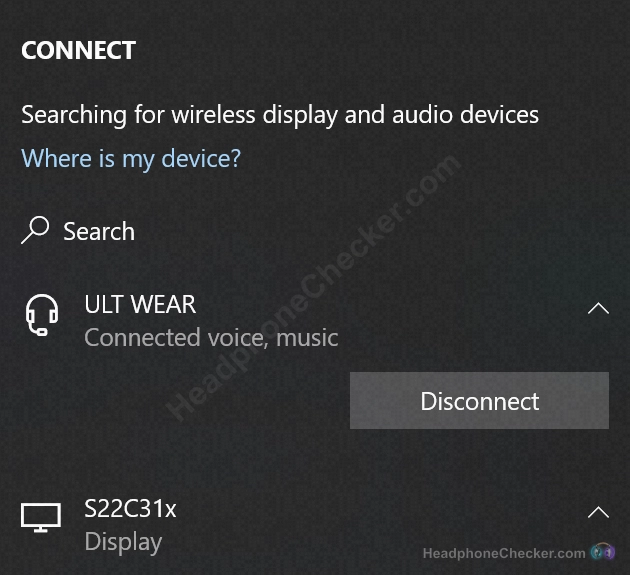
- Charge both buds, then take them out of the case together.
- Remove the earbuds from your Bluetooth list ("Forget" or "Remove") and pair them again as one device.
- Select the earbuds as the sound output on your phone or computer.
- If the sound is poor or mono, make sure no app is using the mic; that switches earbuds to call mode.
- Run the left and right earbud test to confirm both buds play their own side.
Pairing problems
- Earbuds do not show up: put them in pairing mode (often a long press on the case button until the light blinks).
- Two entries for the earbuds: some models list each bud or a "LE" entry. Connect the main entry only.
- Connects to the wrong device: earbuds reconnect to the last device used. Turn Bluetooth off on the other device.
- Only one bud connects: follow the one earbud not working guide.
Dropout test: check your Bluetooth headphone connection
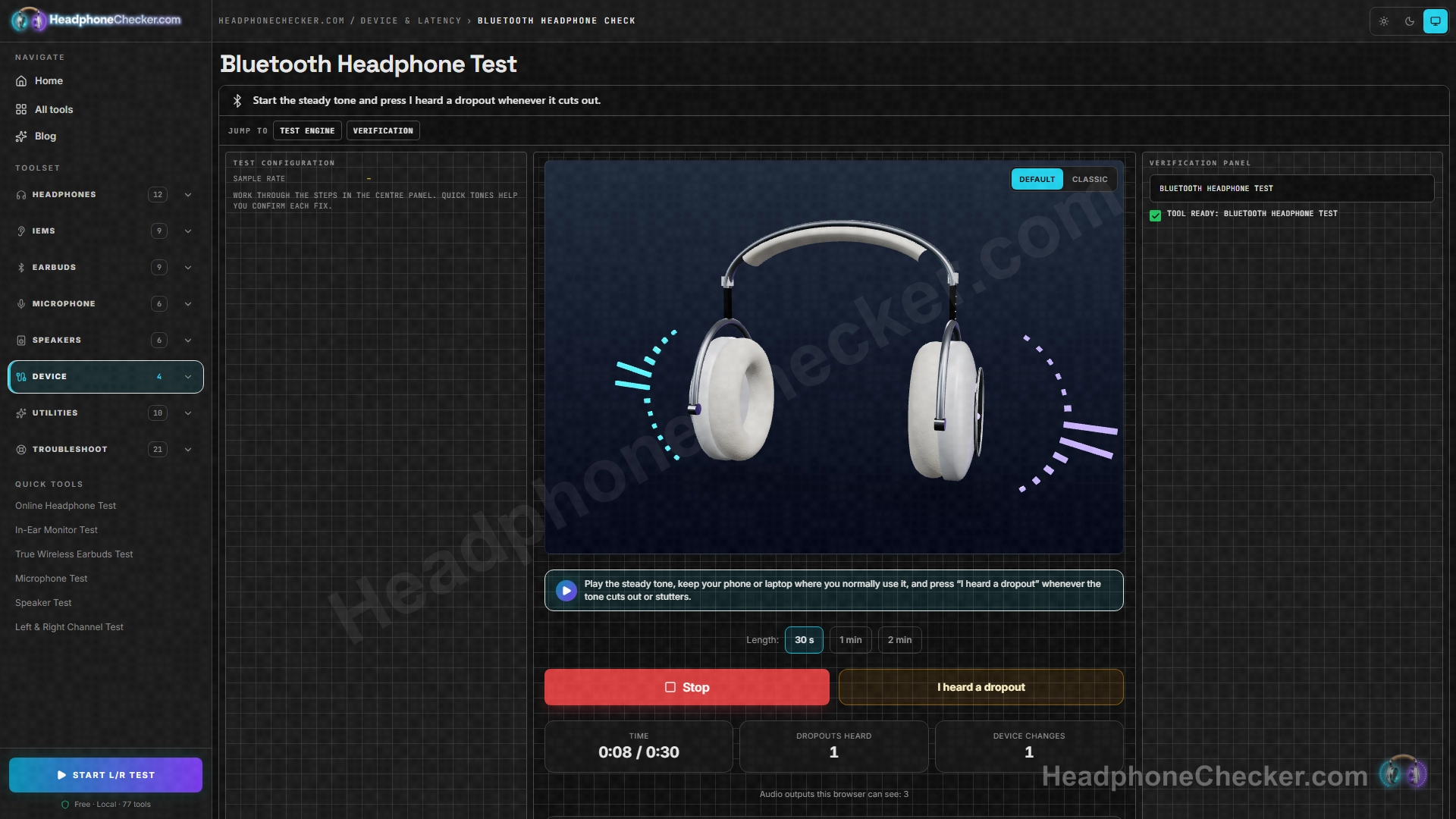
Choose Dropout test above. It works the same for over-ear headphones and earbuds.
- Connect the Bluetooth headphones and make sure sound is going to them, not to the speakers.
- Pick a length. One minute is enough for a quick check; two minutes catches faults that come and go.
- Press Start link test and keep the volume low. A steady tone makes even short gaps easy to hear.
- Move around as you normally would: walk to another room, put the phone in your pocket, stand near the Wi-Fi router.
- Press I heard a dropout whenever the tone cuts out or stutters. The page also logs device changes by itself when the headphones disconnect, reconnect or switch mode.
Reading the dropout result
- No dropouts and no device changes: the link is stable where you tested.
- Dropouts without device changes: the radio link is struggling while staying connected. Distance, your body, walls or 2.4 GHz interference are the usual causes.
- Device changes: the headphones really disconnected or changed mode. Follow the Bluetooth disconnect fixes.
Why this test never opens your microphone
When a page or app opens the microphone of a Bluetooth headset, most systems switch it from the high-quality music mode (A2DP) to the hands-free call mode (HFP), which sounds muffled and narrow. It is also why music sounds worse during calls. To fix call quality, see the Bluetooth call audio guide.
What your result means
- Both buds play, left and right in the right ears: pairing and routing are fine. If anything still feels off, check the delay with the Bluetooth latency test.
- Only one bud plays: the buds have lost their link to each other or one is flat. Follow the one earbud not working guide.
- Sound is thin, mono or like a phone call: an app has opened the earbud microphone, so they switched to the hands-free profile. Close the call or meeting app; the call audio quality guide explains why.
- Plays but cuts out: distance, a phone in a back pocket or busy 2.4 GHz Wi-Fi. Work through Bluetooth headphones that keep disconnecting.
If the same fault returns after a reset, a firmware update and a test on a second phone or computer, the earbuds themselves are the likely cause. Note what you tested and contact the maker or the shop while the warranty is valid.
What to check next
How to solve common issues
Stuck in call mode
Close apps using the mic and select the stereo Headphones output.
Open related testDisconnects often
Log dropouts and follow the disconnect fixes.
Open related testAudio behind video
Measure the delay and use low-latency mode.
Open related testStutter in one spot
Move closer, keep a clear line of sight, switch Wi-Fi to 5 GHz and keep a desktop Bluetooth dongle away from USB 3 devices.
Open related testConnected to two devices
Multipoint headphones can jump to your phone when it plays a notification. Disconnect the device you are not using.
FAQ
Why do my Bluetooth earbuds connect but play no sound?
Why does my laptop show "Headset" and "Headphones" for the same earbuds?
How far can I go from my phone?
Why does the sound cut out when my phone is in my pocket?
Does Wi-Fi interfere with Bluetooth?
Can a website see which Bluetooth codec I am using?
Privacy, safe volume and browser limits apply to every test: see how our tests work.