Troubleshooting
Bluetooth Headphone Problems: The Complete Fix Guide
Not pairing, cutting out, no sound, muffled calls, lag or one side silent? Find your Bluetooth headphone problem, its usual cause and the fix, with a free test for each.
On this page12 sections
Bluetooth headphones fail in a handful of predictable ways: they will not pair, they cut out, they connect with no sound, they sound muffled on calls, they lag behind video, or one side goes quiet.
Each problem has a short list of usual causes, and most are fixed in a few minutes without any new hardware.
Find your problem in the table, read the short section on it, then use the linked test or guide to check and fix it. Every test runs in your browser, with nothing to install.
Let's find a problem first before fixing it.
Find your problem
What happens | Usual cause | Start here |
|---|---|---|
Will not pair or connect | Not in pairing mode, still connected to another device, old pairing | |
Keeps disconnecting or cutting out | Distance, your body, Wi-Fi interference, power saving | |
Connected, but no sound | Wrong output selected, volume at zero | |
Muffled sound or bad calls | Hands-free (call) mode instead of stereo | |
Sound lags behind video or games | Bluetooth delay, codec, low-latency mode off | |
Only one side works | Balance or mono setting, one earbud not connected | |
Volume too low | Volume limit, separate phone and headphone volume |
1. They will not pair or connect
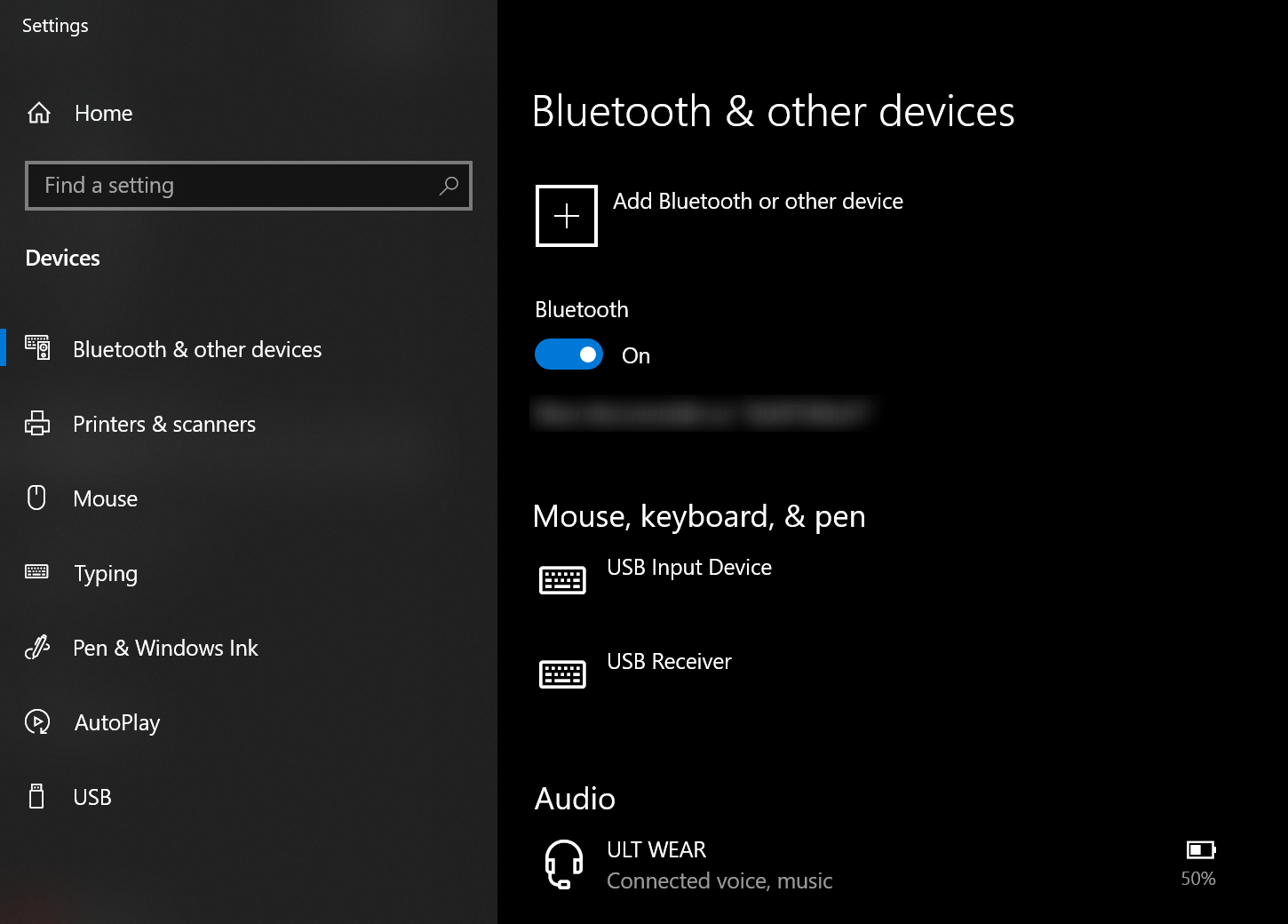
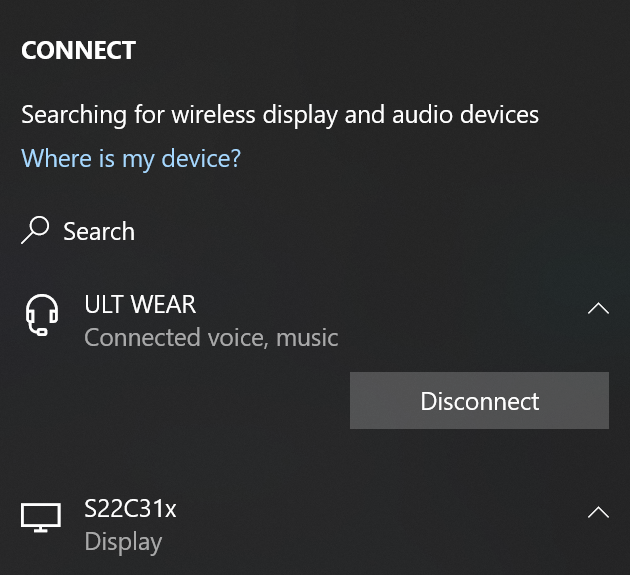
Switching headphones on only reconnects them to the last device they used. To appear on a new phone or computer they must be in pairing mode, usually by holding the power or Bluetooth button until a light flashes or you hear "pairing". If they still will not connect, they may be held by another device: turn Bluetooth off on your laptop or tablet and try again.
When the headphones are listed but connecting fails, the saved pairing no longer matches. Forget them on your device and pair again. The Bluetooth headphones not connecting guide has the exact steps for iPhone, Android, Windows and Mac, and how to reset the headphones when nothing else works.
2. They keep disconnecting or cutting out
Bluetooth uses the same 2.4 GHz band as Wi-Fi and is easily blocked by your own body. A phone in a back pocket, a busy router or a USB 3 hub near a Bluetooth dongle are classic causes of short dropouts. Full disconnects are more often low battery, power saving on a Windows PC, or headphones switching to another device they are also connected to.
To see how often it really happens, the Bluetooth headphone test plays a steady tone and logs every dropout you hear and every time the audio device disconnects. Then work through the disconnecting fixes for your device.
3. Connected, but no sound
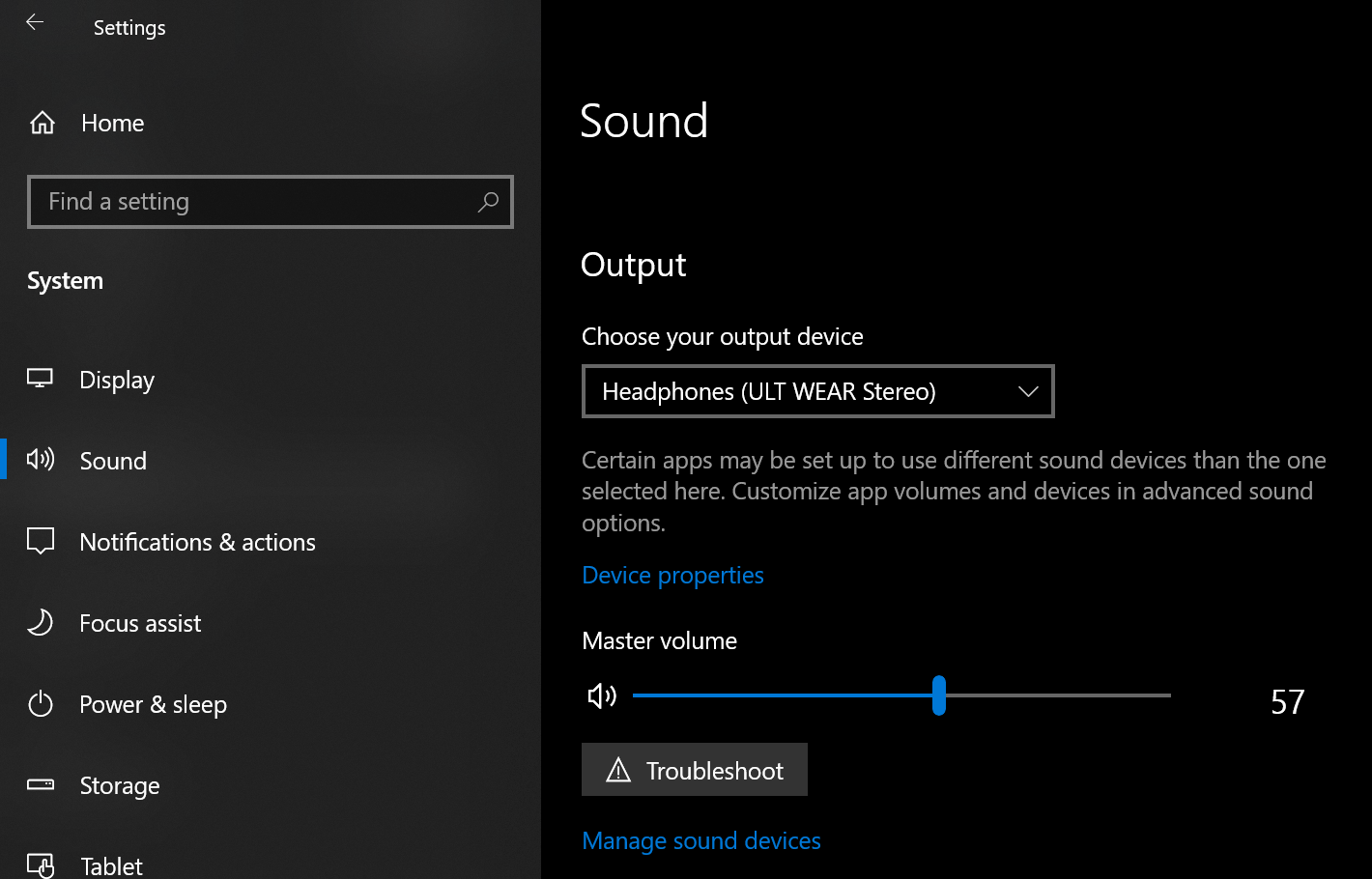
The phone or computer may still be sending sound somewhere else. Check that the headphones are selected as the output in your sound settings, and that both the device volume and the headphone volume are up. On a computer, the audio device checker shows which outputs your browser can see. If the headphones are missing from the list, the headphones not detected guide covers drivers and settings.
4. Sound is muffled, or calls sound bad
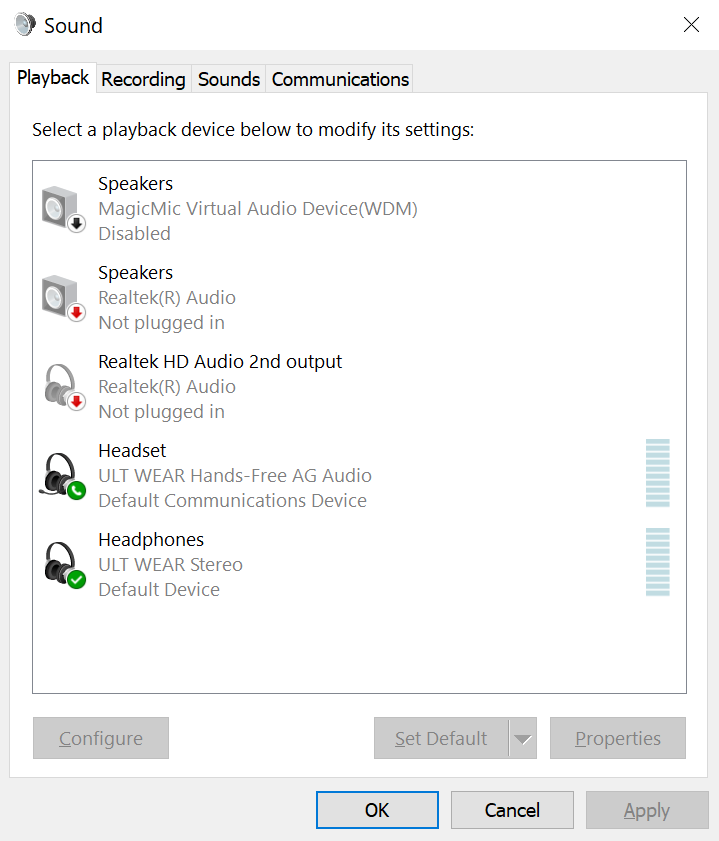
Bluetooth headphones use one mode for music and another for calls. The call mode, called hands-free, carries the microphone too, so it sends much lower quality sound in both directions. On Windows it often shows up as a second output named "Hands-Free" or "Headset". If music sounds like a phone call, that output is selected: switch to the stereo one.
The Bluetooth call audio quality guide explains the two modes and how to get clearer calls, for example by using the computer's own microphone so the headphones can stay in stereo mode.
5. Sound lags behind video or games
Every Bluetooth connection adds some delay, often 150 to 300 milliseconds. Video apps usually correct for it, so lips stay in sync, but games and music apps often cannot. A game mode or low-latency mode in the headphone app helps, and so does a codec built for low delay.
Measure your own delay with the Bluetooth audio latency test. For rhythm games or playing an instrument, wired headphones or a 2.4 GHz gaming dongle are the reliable choice.
6. Only one side works
Bluetooth has no cable to break, so one silent side is usually a setting or a connection problem. Check the left/right balance slider and turn off Mono Audio in the accessibility settings. With true wireless earbuds, the silent bud may have lost its link to the other one: put both in the case, close the lid for a few seconds and take them out again, or reset them.
Confirm each side with the left and right headphone test, then follow the one side not working guide or, for earbuds, the one earbud not working guide.
7. Volume is too low
Phones often limit headphone volume for hearing safety, and some combinations of phone and headphones keep two separate volume levels. Check the volume limit in your sound or headphone safety settings, turn the headphones' own volume up, and clean the earbud mesh if one bud is quieter. The volume too low guide goes through each setting.
8. The microphone does not work on calls
Check that the app is allowed to use the microphone and that the headphones are selected as the input, not only the output. The microphone test shows whether your voice gets through at all. For Discord, the headset mic not working on Discord guide covers its separate input settings.
Quick checks that fix most problems
Charge the headphones. Many will not pair or keep dropping out below about 20%.
Update the firmware in the maker's app. Connection bugs are often fixed this way.
Connect to one device at a time while you test, so another phone or laptop cannot take over.
Forget and pair again. It clears an old or damaged pairing on both sides.
Restart the phone or computer. Bluetooth can get stuck after a system update.
When it is the headphones, not the settings
Try the headphones with a second phone or computer. If the problem follows the headphones to every device, even after a full charge and a factory reset, the fault is in the headphones: a weak battery, a failing Bluetooth module or a damaged earbud. Contact the maker or seller about a repair or a warranty claim, and mention the tests you ran.
Frequently asked questions
Why do my Bluetooth headphones not work properly?
How do I reset Bluetooth headphones?
Why do my Bluetooth headphones sound bad on a computer?
Can Wi-Fi interfere with Bluetooth headphones?
Written by

Tanmoy Kumar
Founder, HeadphoneChecker.com
Since 2020, I've been working professionally with audio, testing and comparing headphones, IEMs, and earbuds, and writing about them for a range of commercial and affiliate websites. Along the way, I've repeatedly encountered the same problems that everyday listeners face: left and right channels being reversed, one side playing quietly or not at all, IEMs sounding thin or weak because of a poor ear-tip seal, Bluetooth audio lag, microphones that don't work or sound muffled, and volume that's simply too low. I created Headphone Checker to make diagnosing and fixing these issues simple, free, and transparent. Everything works directly in your browser, with no software to install and no sign-up required.
View profile and all articles