3D Spatial Audio Test for Headphones
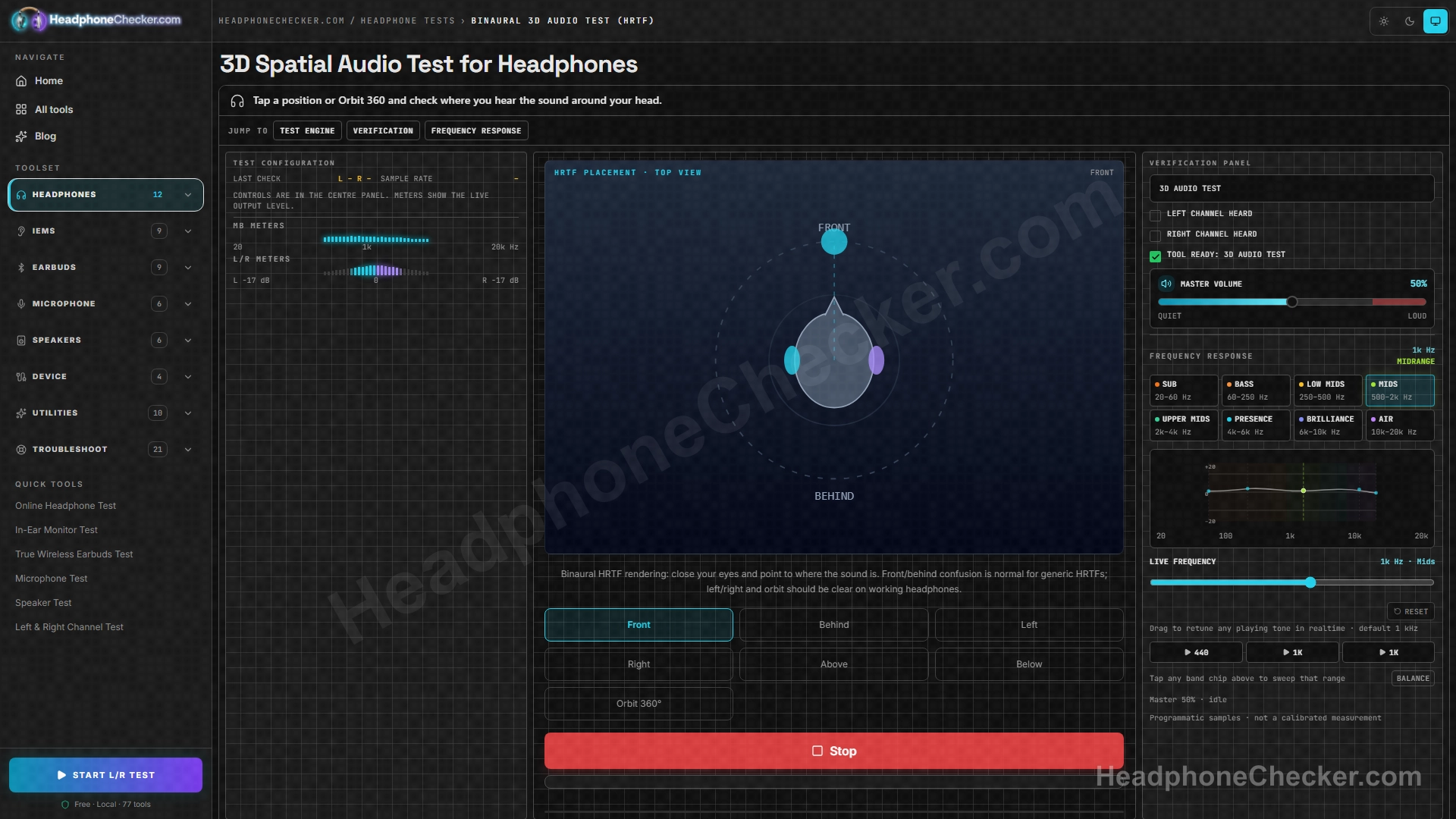
Tap a position or Orbit 360 and check where you hear the sound around your head.
Binaural HRTF rendering: close your eyes and point to where the sound is. Front/behind confusion is normal for generic HRTFs; left/right and orbit should be clear on working headphones.
“Try binaural / panning immersion”
Free spatial audio test for any headphones or AirPods: hear binaural sound in front, behind, above and all around you, and check how well you place it.
- Binaural HRTF positioning demo
- 3D head visual showing source direction
- Shared lab: master volume with limiter, L/R level meters and live output spectrum
- Runs locally in the browser, no install or upload
- Start quiet; protect your hearing
A browser check for finding faults, not a calibrated lab measurement. How our tests work
How to run the 3D spatial audio test
This spatial audio test places a binaural sound in front, behind, above, below and around you, so you can judge 3D sound on any stereo headphones. Use it as a 360 audio test, a binaural audio test or a virtual surround test, and as an AirPods spatial audio test.
- Use headphones or earbuds. Spatial audio relies on each ear getting its own signal, so speakers will not work.
- Close your eyes and tap a position: Front, Behind, Left, Right, Above or Below.
- Point to where you hear the bursts, then open your eyes and compare with the label.
- Tap Orbit 360°. The sound should circle smoothly around your head.
- If your device has its own spatial audio (Apple Spatial Audio, Windows Sonic, Dolby Atmos for Headphones), turn it off first so the two do not stack.
What is normal
- Left and right should always be clear. If they are not, check plain stereo first with the left and right headphone test.
- Mixing up front and behind is normal. The test uses a generic head model (HRTF), and every head and pair of ears is different.
- Above and below are the hardest positions to hear, so a vague result there is common.
- If every position sounds centred inside your head, Mono audio is probably on. Check with the mono audio test.
Spatial audio, virtual surround and 3D audio
Spatial audio is the general term: sound is filtered with a head-related transfer function (HRTF) so it seems to come from around you on ordinary stereo headphones. Virtual 7.1 places the channels of a surround mix around your head, and head-tracked spatial audio keeps sounds fixed in the room as you turn. This page renders the HRTF in your browser, so it works on any headphones without special hardware.
What to check next
If this test passed
If something was wrong
How to solve common issues
Everything sounds centred
Turn off Mono audio in your accessibility settings and test again.
Open related testLeft and right swapped
Check the L and R markings, then confirm the channels with the left and right test.
Open related testPositions sound smeared
Turn off Windows Sonic, Dolby or headset virtual surround while testing. Two layers of spatial processing blur the positions.
FAQ
Do I need special headphones for spatial audio?
Why does the sound seem to be inside my head?
Does the 3D audio test work on speakers?
Is this the same as Dolby Atmos?
Privacy, safe volume and browser limits apply to every test: see how our tests work.
Continue diagnosing
All Headphone Tests →Headphone Tests
Left & Right Headphone Test
Is my left or right headphone working?
OpenHeadphone Tests
Headphone Balance Test
Why does one ear sound louder than the other?
OpenHeadphone Tests
Stereo Headphone Test
Are my headphones producing proper stereo sound?
OpenHeadphone Tests
Headphone Frequency Test
Can my headphones reproduce different frequencies?
Open